ZA Local Setup & Fiscal Year
ZA Local Setup & Fiscal Year
ZA Local Setup (guided loader)
ZA Local Setup is the app's guided configuration helper. Open it from the SA Overview workspace → ZA setup → ZA Local Setup (or search "ZA Local Setup"). It lets you load the South African master data and chart of accounts for a company from one screen, and it records when setup was last applied.
How to run it
- Select the Company and confirm Country is South Africa. (Setup Status starts as Pending.)
- Tick the data sets you want to load (see below).
- Save the document to store your selections.
- Click Apply Selected Configuration (top-right). The document moves to In Progress, runs the load, and records Setup Completed On. A feedback dialog summarises what was applied.
It is re-runnable: open it again, adjust the ticks, and click Apply Selected Configuration to run it once more. Loading is idempotent — existing records are left in place.
Options
Salary Components (shown only when Frappe HR/HRMS is installed)
- Create Default Salary Components — statutory components (PAYE, UIF, SDL, COIDA).
- Create Earnings Components — common earnings (Basic Salary, Housing, Transport, etc.).
- Load Tax Slabs — SARS income tax brackets.
- Load Tax Rebates — primary/secondary/tertiary rebates.
- Load Medical Tax Credits — medical scheme tax credit rates.
When HRMS is not installed, these five options are hidden and forced off — they require payroll. The remaining options below still apply to the ERPNext-only track.
Master Data
- Load Business Trip Regions — predefined regions with SARS-compliant rates.
- Load SETA List — Sector Education and Training Authorities.
- Load Bargaining Councils — South African bargaining councils.
Chart of Accounts
- Load Chart of Accounts — the South African chart with all required tax accounts (VAT, PAYE, UIF, SDL, COIDA).
Most of this data is also seeded automatically on install/migrate. Use ZA Local Setup to (re)load a specific data set for a particular company, or to confirm everything is in place from one screen. If a load option is ticked but HRMS is missing, the app skips it rather than erroring.
Publish the practitioner guide (optional)
If the Frappe Wiki app is installed, ZA Local Setup also shows a Documentation → Publish Practitioner Guide button. Clicking it stages (or refreshes) this guide as a Wiki Space at /sa-guide. The button is hidden when Wiki is not installed. It runs the same idempotent staging as the command line (bench --site <site> execute za_local.practitioner_guide.stage.stage_space) and requires the System Manager role.
Fiscal Year
The South African tax year runs 1 March to the last day of February. Create a Fiscal Year that matches:
- Go to Fiscal Year → New.
- Name it for the year of assessment, e.g.
2026-2027. - Year Start Date:
2026-03-01. - Year End Date:
2027-02-28. - Add the company under Companies.
ERPNext may have created a calendar-aligned fiscal year during the setup wizard. For South African statutory reporting, ensure a March-to-February fiscal year exists, because COIDA returns, EMP501 reconciliation and annual payroll calculations align to it.
Payroll Period (full suite)
If you run payroll, also create a Payroll Period spanning the same dates (e.g. 2026-03-01 to 2027-02-28) for the company. The payroll engine uses the payroll period to annualise income for PAYE and to bound EMP501. Payroll period records for the configured years are seeded by the app; confirm one exists for your active year.
Holiday List (full suite)
Create a Holiday List for the calendar year(s) the tax year spans and add the South African public holidays (the app seeds holiday lists for the configured years). Assign it to the company so leave and working-day calculations are correct. Watch for any once-off public holidays (for example, declared election days).
Next
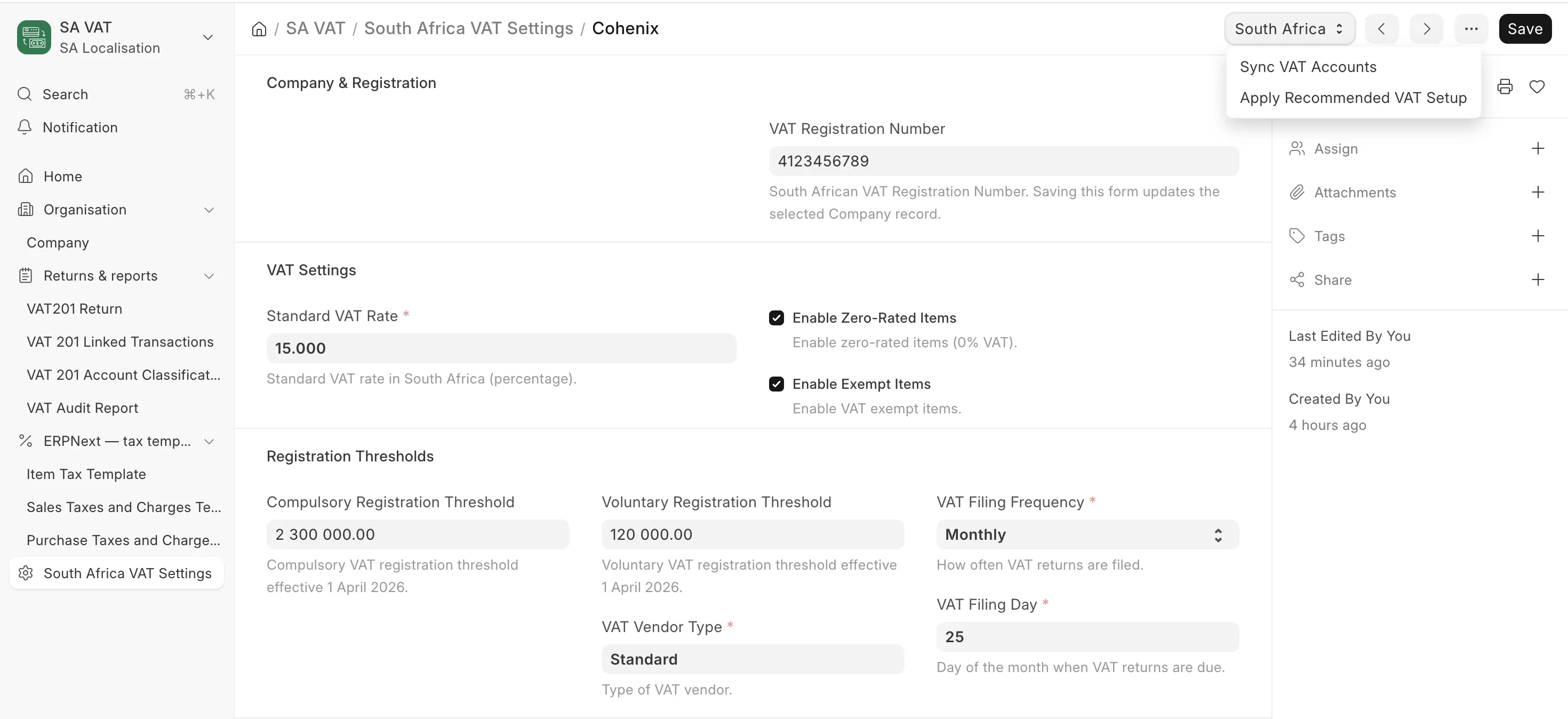
- ERPNext-only track: go to South Africa VAT Settings.
- Full suite: complete the VAT section, then start Payroll Prerequisites & Settings.